Game Profiles
Skip the grind and start your trucking empire today. Download professional Euro Truck Simulator 2 and American Truck Simulator profiles with max skills and money.
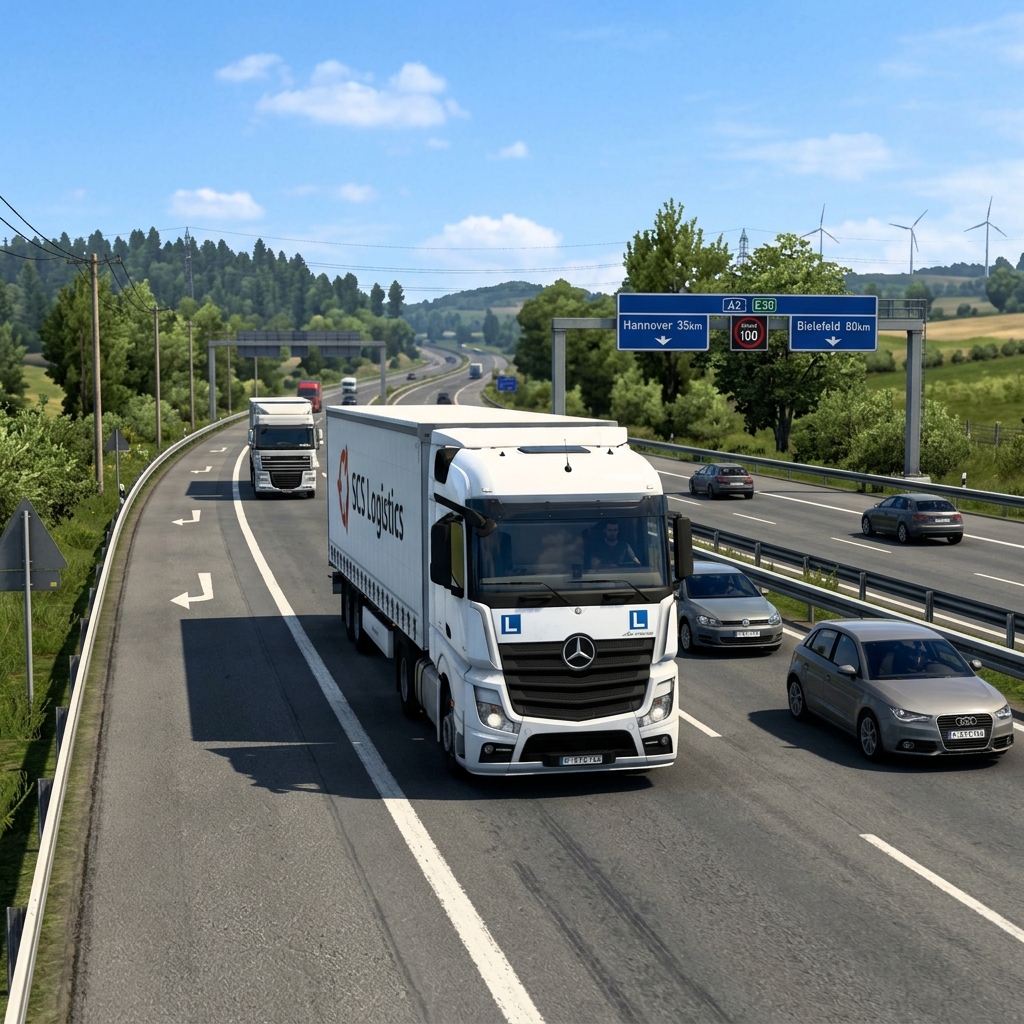
Base Game Profile
Download our pre-configured pro profile with:
- No DLC Required
- €5,000,000 Starting Cash
- Max Skill Level (Level 50)
- Basic Fleet of 05 Trucks
Filename:
506C617968617578202D2042617365.zip (351 KB)

All Map DLC Profile
Download our pre-configured pro profile with:
- All Map DLC Version
- €5,000,000 Starting Cash
- Max Skill Level (Level 50)
- Premium Fleet of 05 Trucks
Filename:
506C617968617578202D20416C6C204D6170.zip (1.23 MB)

Rota Factor Map Profile
Download our pre-configured pro profile with:
- Rota Factor Map Required (Link In The TXT File)
- No DLC Required
- €5,000,000 Starting Cash
- Max Skill Level (Level 50)
- Off-road Fleet of 05 Trucks
Filename:
506C617968617578202D20526F7461.zip (224 KB)
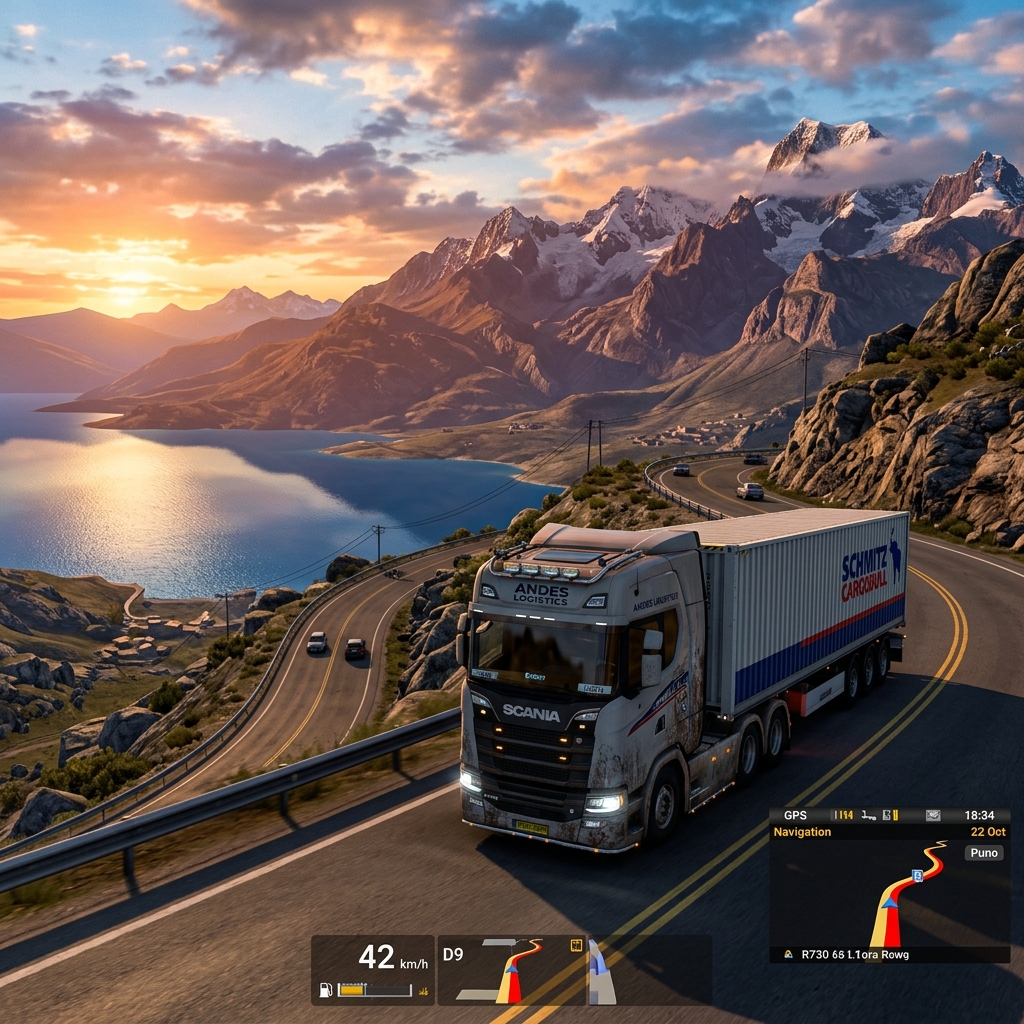
Puno Peru Map Profile
Download our pre-configured pro profile with:
- Puno Peru Map Required (Link In The TXT File)
- No DLC Required
- €5,000,000 Starting Cash
- Max Skill Level (Level 50)
- Special Fleet of 05 Trucks
Filename:
506C617968617578202D2050657275.zip (225 KB)
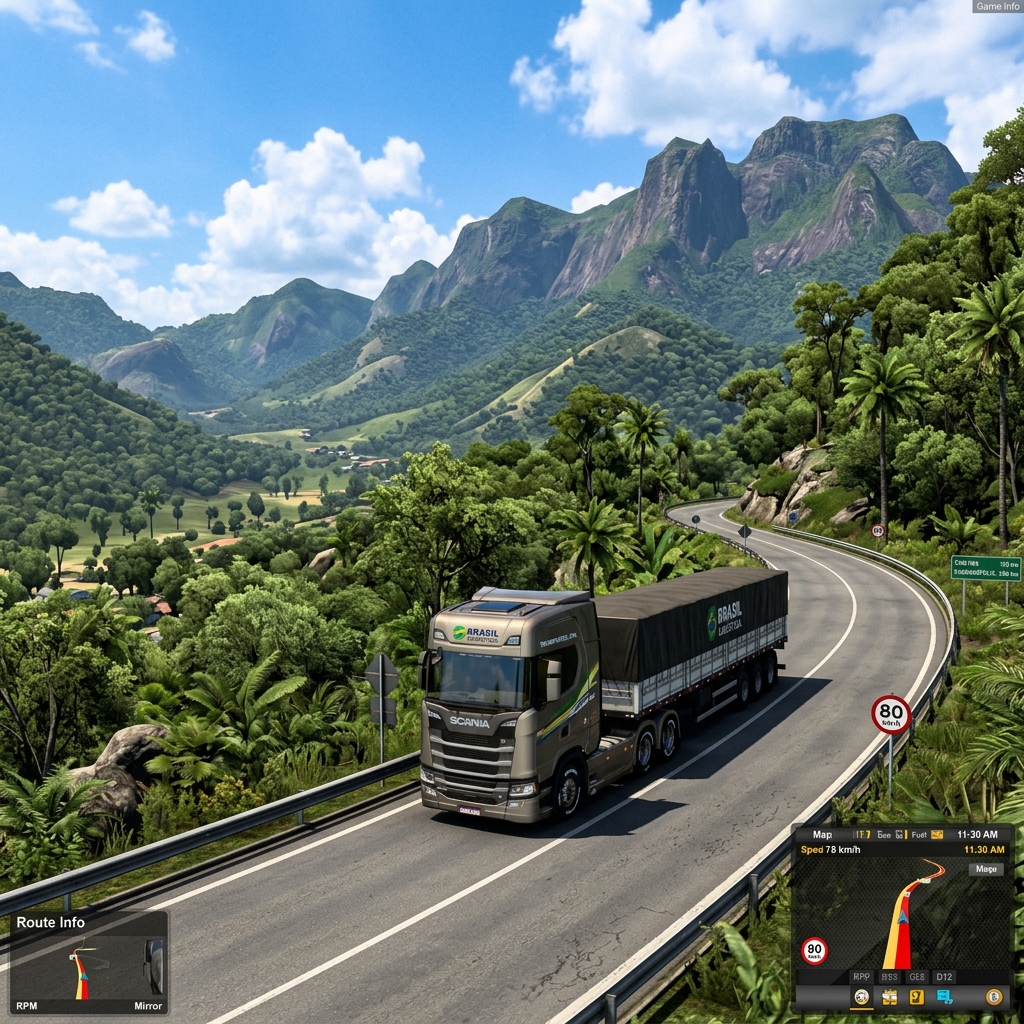
Brazil Map Profile
Download our pre-configured pro profile with:
- Brazil Map Required
- No DLC Required
- €5,000,000 Starting Cash
- Max Skill Level (Level 50)
- BYOT
Filename:
506C617968617578202D204272617A696C.zip (1.23 MB)
Steps to Change Save Format via config.cfg
Setting g_save_format "2" switches the game to a decrypted text save format. This is required for custom downloaded profiles to load seamlessly, prevents save corruption, and enables save-editing tools.
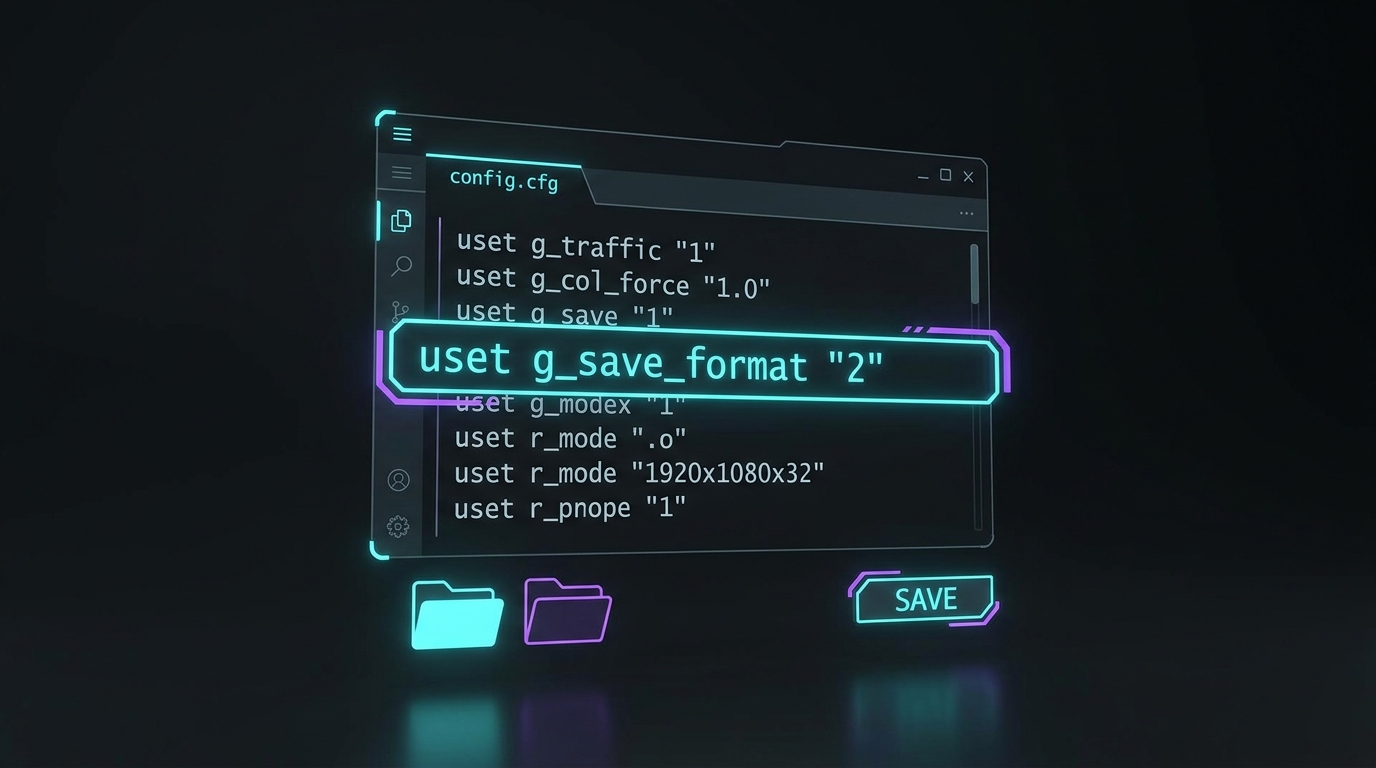
Step-by-Step Walkthrough
Follow each step carefully to configure your save format and apply your new profile.
Close Game Completely
Close Euro Truck Simulator 2 (or ATS) completely. If the game is running, it will overwrite your config.cfg file upon exiting.
Open File Explorer
Press the Windows shortcut or click the folder icon on your taskbar.
Navigate to Documents
Navigate to your ETS2 documents folder on your computer:
C:\Users\[Your Username]\Documents\Euro Truck Simulator 2Locate config.cfg
In the main Euro Truck Simulator 2 folder, find the configuration file named config.cfg.
Open with Notepad
Right-click config.cfg, select Open with, and choose Notepad (or Notepad++, VS Code, or any text editor).
Open Find / Search Bar
Press the search shortcut to open the Find dialog inside Notepad.
Search for g_save_format
Type g_save_format in the search box and click Find Next to jump directly to the target line.
Change Number to "2"
Change the number inside the quotes from "0" (or another number) to "2" so it reads:
uset g_save_format "2"Save File & Close Notepad
Save your updated file and close the Notepad window.
Apply In-Game & Add Profile
Launch the game, load your profile, and make a new in-game save or quick-save for the changes to fully apply. Then close the game and copy-paste your downloaded profile into the profiles folder.
Documents\Euro Truck Simulator 2\profilesWhy Change to Format "2"?
By default, ETS2 uses binary format "0". Setting it to "2" outputs saves in clean, readable text format, ensuring downloaded profiles load without corruption and enabling tools like SII Decrypter.
Use our free Config Optimizer to automatically configure your developer settings and save formats with one click.
Open Config OptimizerHow to Install Profile
Follow these 3 simple steps to add the downloaded profile folder to your game.
Download & Extract
Get the ZIP file from the download button above and extract the folder using WinRAR or 7-Zip.
Move to Profiles
Copy the extracted profile folder into your ETS2 profiles directory:
Documents\Euro Truck Simulator 2\profilesSelect In-Game
Launch Euro Truck Simulator 2 and look for "Playhaux" in the profile selection menu. Happy trucking!